


In the modern software development landscape, tools play a crucial role in determining productivity, efficiency, and code quality. One of the most popular code editors today is Visual Studio Code (VS Code), developed by Microsoft. Launched in 2015, VS Code quickly gained adoption due to its lightweight nature, extensibility, cross-platform support, and rich ecosystem of extensions.
Unlike traditional heavy IDEs (Integrated Development Environments) such as Visual Studio, Eclipse, or IntelliJ IDEA, VS Code strikes a balance between being a simple text editor and a powerful coding environment. With features like IntelliSense, debugging, Git integration, and marketplace extensions, it enables developers to code efficiently across multiple languages and platforms.
This article provides a comprehensive guide to Visual Studio Code—its features, how to use it effectively, integrating it with GitHub for version control, and leveraging it for real-world software development.
1. What is Visual Studio Code?
Visual Studio Code (VS Code) is an open-source code editor built on Electron, a framework for building desktop applications using web technologies (HTML, CSS, and JavaScript). It is available for Windows, macOS, and Linux, making it a universal choice for developers across operating systems.
Key Highlights:
- Lightweight and fast compared to full IDEs.
- Free and open-source (source code available on GitHub).
- Cross-platform support.
- Integrated Git and GitHub functionalities.
- Extensible via thousands of extensions (language packs, linters, debuggers, theming).
- Built-in IntelliSense (code completion, parameter hints, quick fixes).
- Integrated terminal for running shell commands.
According to the Stack Overflow Developer Survey 2023, Visual Studio Code is the most popular development environment worldwide, used by more than 74% of developers.
2. Installing Visual Studio Code
Step 1: Download
- Official website: https://code.visualstudio.com
- Available for Windows (.exe / .zip), macOS (.dmg), and Linux (.deb / .rpm / tar.gz).
Step 2: Installation
- Windows: Run the installer → Accept license → Choose components → Install.
- macOS: Drag and drop
.dmginto Applications. - Linux: Install using package manager:
sudo apt install code # Debian/Ubuntu sudo dnf install code # Fedora sudo snap install code --classic # Snap package
Step 3: First Launch
- Launch the app.
- Choose a theme (Dark+ or Light+).
- Explore the Welcome screen with quick setup guides.
3. VS Code User Interface Overview
VS Code has a clean and intuitive interface. Key components include:
- Activity Bar (left sidebar): Switch between Explorer, Search, Source Control, Run/Debug, Extensions.
- Side Bar: Displays Explorer, Git changes, or extension settings.
- Editor Group: Main area where files open in tabs.
- Status Bar (bottom): Shows Git branch, errors/warnings, encoding, line/column.
- Command Palette (
Ctrl + Shift + P/Cmd + Shift + P): Access all VS Code commands quickly. - Integrated Terminal (
Ctrl + ~): Open shell within editor.
4. Setting Up Programming Languages in VS Code
VS Code supports multiple languages via extensions. Some examples:
- JavaScript/TypeScript: Built-in support.
- Python: Install the “Python” extension (Microsoft).
- Java: Install “Java Extension Pack”.
- C/C++: Install “C/C++” extension for IntelliSense and debugging.
- Go: Install “Go” extension.
- Rust: Install “Rust Analyzer”.
- PHP: Install “PHP Intelephense”.
Example: Setting up Python
- Install Python extension.
- Configure Python interpreter (
Ctrl+Shift+P→ “Python: Select Interpreter”). - Run code using
Run > Start Debuggingor terminal command.
5. Extensions and Marketplace
The VS Code Marketplace offers thousands of extensions to enhance productivity.
Popular Extensions:
- Prettier – Code formatter.
- ESLint – JavaScript linter.
- Docker – Manage Docker containers.
- Remote – SSH – Develop remotely via SSH.
- Jupyter – Run Jupyter Notebooks in VS Code.
- GitLens – Advanced Git insights.
- Live Server – Launch local development server for web projects.
Extensions can be installed from the Extensions view (Ctrl+Shift+X).
6. Working with Git and GitHub in VS Code
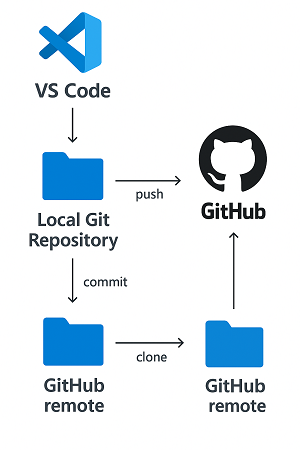
One of VS Code’s most powerful features is its integrated Git support, making version control seamless.
6.1 Initializing a Git Repository
- Open your project folder.
- Open Source Control view (left panel).
- Click “Initialize Repository”.
- VS Code tracks changes automatically.
6.2 Connecting to GitHub
- Install the GitHub Pull Requests and Issues extension.
- Sign in with GitHub account (
Ctrl+Shift+P→ “GitHub: Sign in”). - Clone repository:
git clone https://github.com/username/repo.gitor use Command Palette: “Git: Clone”.
6.3 Common Git Operations in VS Code
- Stage/Commit Changes: From Source Control panel.
- Push/Pull: Click the cloud icon in the bottom-left status bar.
- Branching: Create/switch branches directly from the status bar.
- Merge Conflicts: VS Code provides visual diff/merge editor.
6.4 Pull Requests in VS Code
- With GitHub extension, you can:
- Create pull requests.
- Review and comment on code.
- Merge branches without leaving VS Code.
7. Debugging in VS Code
Debugging is built into VS Code.
Steps to Debug:
- Click Run and Debug (
Ctrl+Shift+D). - Configure
launch.jsonfor your language (auto-generated). - Add breakpoints by clicking in the editor margin.
- Start debugging (
F5).
Features:
- Breakpoints, step over/into/out.
- Variable inspection.
- Watch expressions.
- Call stack navigation.
8. Using Integrated Terminal
VS Code includes a built-in terminal, eliminating the need to switch applications.
- Open terminal:
Ctrl + ~. - Supports PowerShell, Command Prompt, Bash, Zsh, Fish.
- Supports multiple terminals/tabs.
This is useful for:
- Running Git commands.
- Executing compilers/build tools (e.g.,
npm run build,make). - Running local servers (e.g.,
python manage.py runserver).
9. Programming Activities in VS Code
VS Code can be used across diverse programming workflows.
9.1 Web Development
- Languages: HTML, CSS, JavaScript, TypeScript.
- Extensions: Live Server, ESLint, Prettier, Tailwind CSS IntelliSense.
- Workflow:
- Write frontend code.
- Run local server with Live Server.
- Debug using built-in browser tools.
9.2 Backend Development
- Node.js with Express.js.
- Python with Django/Flask.
- Java with Spring Boot.
- C# with .NET Core.
VS Code allows debugging server-side applications with breakpoints.
9.3 Data Science and AI
- Jupyter Notebook extension to run notebooks inside VS Code.
- Python + TensorFlow/PyTorch integration.
- Interactive Plotting with Matplotlib, Seaborn.
9.4 DevOps and Cloud
- Docker extension: Manage containers/images.
- Kubernetes extension: Manage clusters.
- Azure and AWS Toolkit: Deploy applications directly from VS Code.
9.5 Embedded Systems and IoT
- PlatformIO extension: Build firmware for microcontrollers.
- C/C++ debugging for Arduino/ESP32 boards.
10. Remote Development in VS Code
VS Code supports remote development—coding in environments other than the local machine.
Options:
- Remote – SSH: Develop on remote servers via SSH.
- Remote – Containers: Use Docker containers as development environments.
- GitHub Codespaces: Cloud-hosted VS Code environment.
- WSL (Windows Subsystem for Linux): Develop in a Linux environment on Windows.
This is especially useful in enterprise setups, cloud-native development, and collaboration.
11. Customization and Productivity Hacks
Themes and Icons
- Install themes like Dracula, One Dark Pro, Monokai.
- Install icon packs like Material Icon Theme.
Keyboard Shortcuts
- View shortcuts:
Ctrl+K Ctrl+S. - Example:
Ctrl+P– Quick open files.Ctrl+Shift+O– Go to symbol in file.Ctrl+Shift+M– Problems panel.
Settings Sync
- Sync extensions, themes, and settings across devices with GitHub/Microsoft account.
12. Developing Software Projects with VS Code
Let’s explore a sample end-to-end workflow of software development using VS Code.
Step 1: Initialize Project
- Create project folder.
- Initialize Git:
git init
Step 2: Write Code
- Use VS Code editor with IntelliSense.
- Install linters and formatters for clean code.
Step 3: Debugging
- Configure
launch.json. - Test functionality with breakpoints.
Step 4: Version Control
- Commit changes with meaningful messages.
- Push to GitHub for collaboration.
Step 5: Collaboration
- Create branches for features.
- Submit pull requests.
- Review code with teammates.
Step 6: Deployment
- Use integrated terminal for CI/CD scripts.
- Deploy to cloud (Azure, AWS, Heroku, Vercel) directly from VS Code.
13. Advantages and Limitations of VS Code
Advantages
- Free, open-source, cross-platform.
- Lightweight but powerful.
- Huge ecosystem of extensions.
- Seamless GitHub integration.
- Supports almost all major programming languages.
Limitations
- Heavier than minimalist editors (like Vim, Nano, Sublime).
- Requires extensions for some advanced IDE features.
- Debugging setup can be complex for some languages.
- Electron-based → Higher memory usage compared to native editors.
14. Best Practices for Using VS Code
- Organize Workspaces: Use workspace settings for multi-project environments.
- Leverage Extensions: Install only necessary extensions to avoid bloat.
- Use GitHub Integration: Keep version control inside VS Code.
- Automate Formatting: Use Prettier or Black for auto-formatting.
- Enable Autosave: Avoid data loss.
- Learn Shortcuts: Improve speed and efficiency.
15. Future of Visual Studio Code
VS Code is evolving rapidly, with Microsoft actively maintaining it and the developer community contributing extensions. Future directions include:
- AI-assisted coding with GitHub Copilot.
- Deeper cloud integration (Azure, AWS, Codespaces).
- Enhanced performance with optimized Electron runtime.
- Collaboration features like Live Share for pair programming.
Conclusion
Visual Studio Code has become the go-to editor for developers worldwide, bridging the gap between lightweight text editors and heavy IDEs. With its versatile extensions, GitHub integration, debugging capabilities, and support for nearly all programming languages, it empowers developers to efficiently code, debug, and deploy software.
Whether you are a beginner learning Python, a web developer building full-stack apps, a data scientist running Jupyter notebooks, or a DevOps engineer managing cloud infrastructure, VS Code provides the right tools to enhance productivity.
In essence, VS Code is not just a code editor, but a complete development platform that continues to shape modern programming workflows.